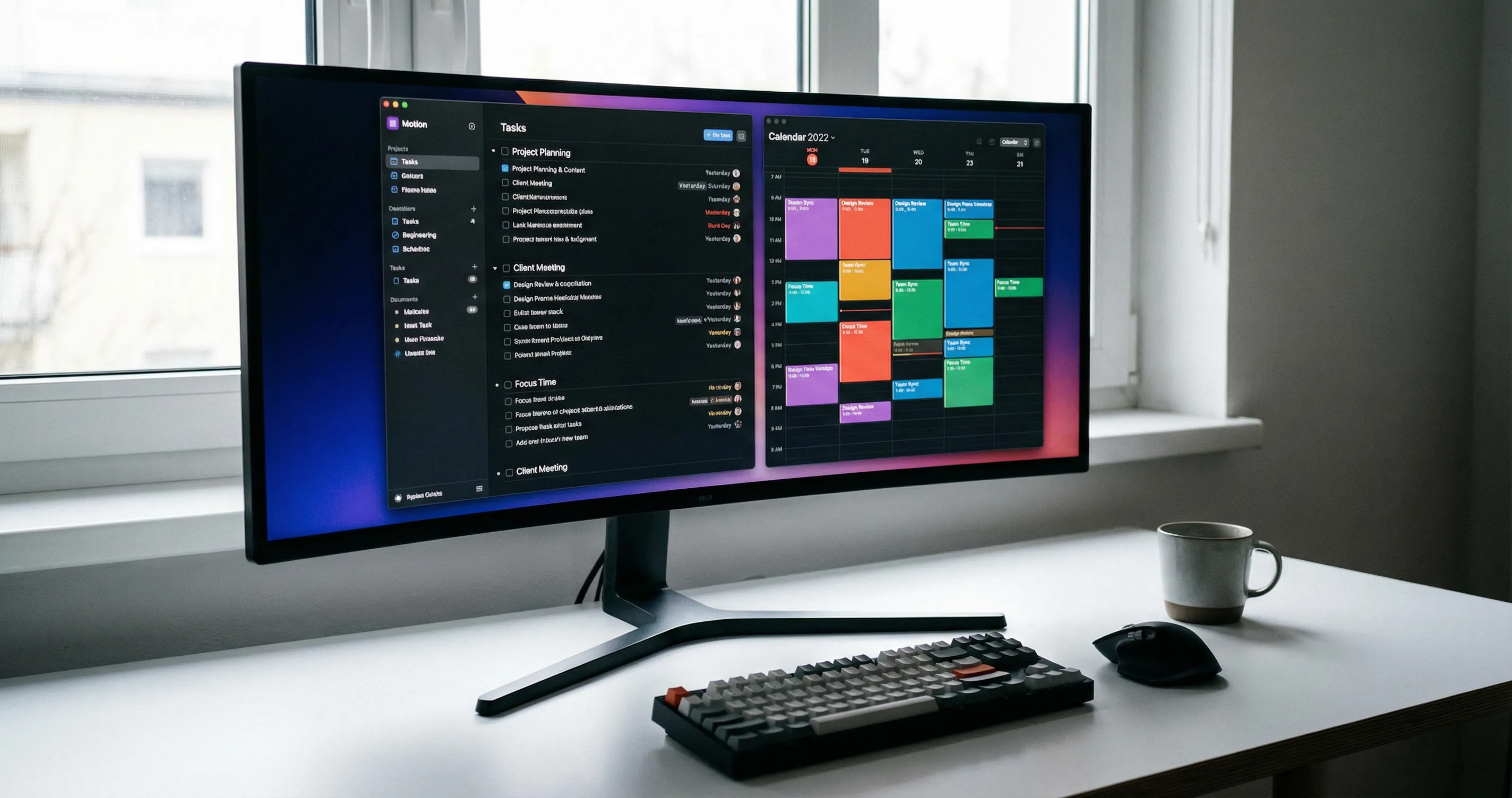
What Motion Does
Motion is an AI-powered task and calendar app that automatically schedules your work. You add tasks with due dates and duration; Motion places them into your calendar based on priority, deadlines, and existing events. If a meeting appears or you miss a block, Motion reschedules remaining tasks so high-priority items still get time. The app syncs with Google Calendar and other calendars and is available on web, desktop, and iPhone. A subscription is required; a 7-day free trial is offered.
Getting Started and Connecting Your Calendar
Sign up at usemotion.com and connect your calendar (e.g., Google Calendar). Grant Motion permission to read and write events so it can add task blocks and see your meetings. Set your working hours and time zone in settings so Motion only schedules within times you are available. You can define when you prefer meetings versus focus time so the auto-scheduler can place tasks in open slots.
Adding Tasks and Letting Motion Schedule Them
Create a task by clicking Add Task or using the quick-add shortcut. Enter the task name, set a due date (and time if it is fixed), and add an estimated duration. Do not assign a specific time slot yourself; leave scheduling to Motion. You can set priority (high, medium, low) so more important tasks get better slots. For recurring work (e.g., weekly review), create a recurring task with a due day (e.g., "by Wednesday noon"); Motion will fit it into your week.
How Auto-Scheduling Behaves
Motion's auto-scheduling runs in the background. It fills your calendar with task blocks, putting the most urgent or high-priority items first and using gaps between meetings. If you add a meeting or an event in your calendar, Motion sees it and shifts task blocks so nothing overlaps. If you skip a block (e.g., you were in an unscheduled meeting), Motion reschedules the remaining tasks for the rest of the day or week. You can open the app to see the updated plan and get notifications for upcoming blocks.
Meetings and One-Click Scheduling
Motion can help with meeting scheduling. Use its scheduling features to create bookable slots or one-click meeting links so others can pick a time. Those meetings then appear in your calendar and are respected by auto-scheduling, so task blocks are placed around them.
Mobile and Quick Capture
On iPhone, use the Motion app to view your schedule and add tasks. You can add tasks via Siri for quick capture (e.g., "Add a task to Motion") so you do not have to open the app. Changes sync to the web and desktop so your calendar stays consistent everywhere.
Tips for Reliable Auto-Scheduling
Keep task durations realistic so the algorithm has accurate data. Use due dates and priorities consistently; vague or missing due dates make it harder for Motion to order tasks. Review your calendar each morning to see what Motion has planned and move or complete tasks as needed. If you have a strict meeting-heavy day, consider blocking focus time so Motion reserves slots for deep work.
What to Do Next
Add your real tasks for the next few days with due dates and durations, then watch how Motion places them. Adjust working hours and priorities if blocks appear at wrong times. After a week, check whether you are completing more high-priority items and whether the rescheduling after changes feels useful.