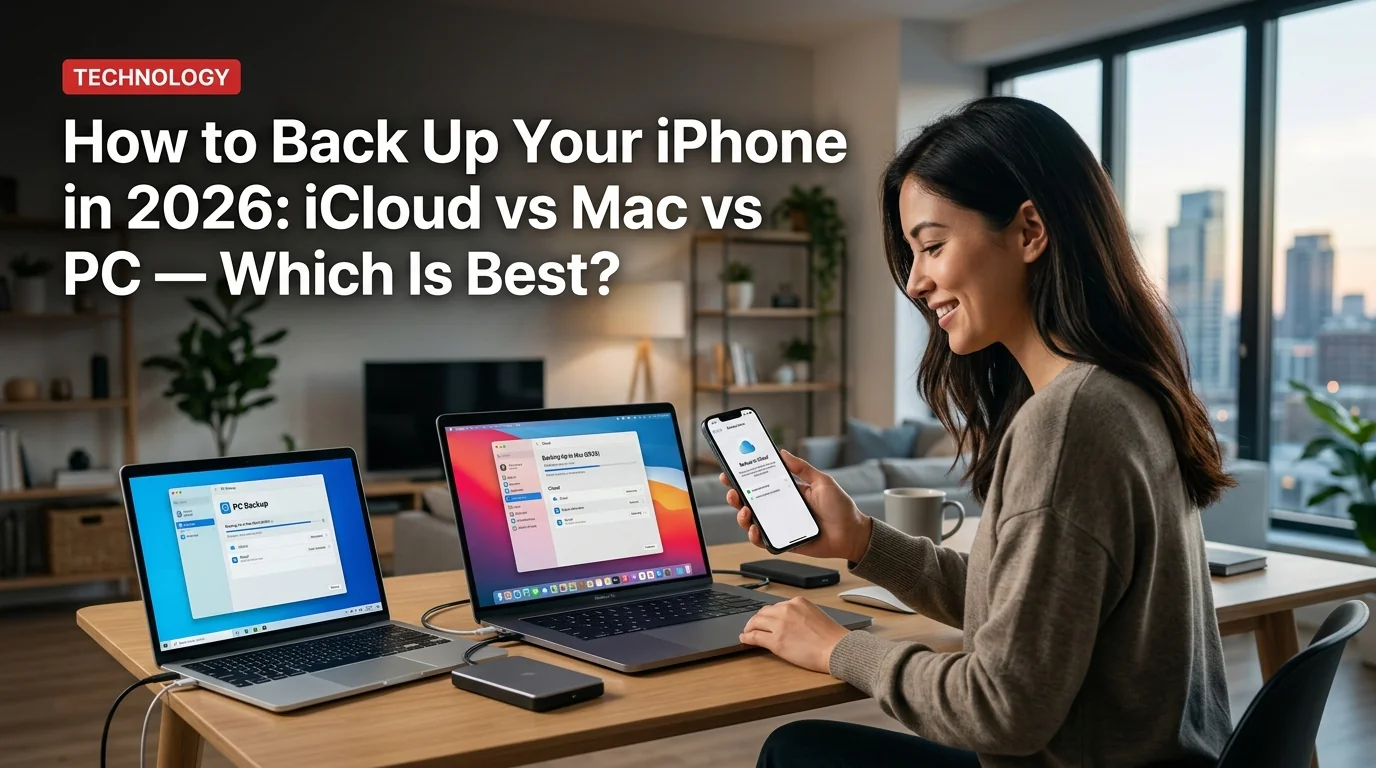
Your iPhone holds your photos, messages, contacts, apps, and years of digital life. A backup takes minutes — losing everything without one takes much longer to recover from. In 2026, you have three solid options: iCloud, a Mac, or a Windows PC. Here's exactly how to use each, and which one is right for you.
Method 1: iCloud Backup (Recommended for Most People)
iCloud backup is the easiest — it happens automatically while you sleep, and restoring a new iPhone is as simple as signing into your Apple ID.
How to back up to iCloud:
- Open Settings on your iPhone
- Tap your name at the top (Apple ID)
- Tap iCloud
- Tap iCloud Backup
- Toggle Back Up This iPhone to ON
- Tap Back Up Now to trigger an immediate backup
Your iPhone will auto-backup daily as long as it's plugged in, on Wi-Fi, and the screen is locked.
iCloud storage and pricing in 2026:
The free 5GB fills up fast — one backup of a 128GB iPhone can easily use 3-4GB. Most users need at least the 50GB plan at $0.99/month.
Method 2: Back Up iPhone to a Mac (Free, Full Backup)
Mac backups are completely free and store everything — including data that iCloud doesn't back up, like Health data and certain app data.
How to back up iPhone to Mac (macOS Catalina or later):
- Connect your iPhone to your Mac with a USB cable
- Open Finder (not iTunes — Apple removed iTunes from Mac in 2019)
- Your iPhone appears in the Finder sidebar under Locations — click it
- Click Trust on your iPhone if prompted, then enter your passcode
- Under the General tab, click Back Up Now
- Wait for the progress bar to complete
Optional: Encrypt your backup — click Encrypt local backup before backing up. This adds your passwords, Health data, and Face ID settings to the backup. Strongly recommended.
- Mac backups are stored in: ~/Library/Application Support/MobileSync/Backup/
- Each backup can be 20-60GB depending on your iPhone content
- You can have multiple backups from different iPhones
- Backups don't automatically delete old versions — manage disk space manually
Method 3: Back Up iPhone to a Windows PC (Free, Full Backup)
Windows users need Apple Devices (the updated replacement for iTunes on Windows 11) or iTunes (Windows 10 and older).
How to back up iPhone to Windows PC:
- Download Apple Devices from the Microsoft Store (Windows 11) or iTunes from apple.com (Windows 10)
- Connect your iPhone via USB cable
- Open Apple Devices or iTunes
- Click the iPhone icon near the top left
- Under Summary → Backups, click Back Up Now
- Check Encrypt local backup for a complete backup including passwords
Windows backups are stored at: C:\Users\[YourName]\Apple\MobileSync\Backup\
iCloud vs Mac vs PC: Which Backup Is Better?
- Automatic — happens overnight without thinking
- Restores wirelessly when setting up a new iPhone
- Accessible anywhere with your Apple ID
- No cable or computer required
- Costs money beyond 5GB (most users need 50GB at $0.99/mo)
- Slower than local backups over Wi-Fi
- Some data excluded (purchased media, Health if not encrypted)
- Requires stable Wi-Fi to complete
- Completely free (no storage fees)
- Faster — USB transfers beat Wi-Fi
- More complete when encrypted (includes Health, passwords)
- Works without internet
- Manual — you have to remember to do it
- Requires a cable and your computer to be nearby
- Restoring requires your computer (not wireless like iCloud)
- Takes up significant disk space (20-60GB)
Which Backup Method Should You Use?
The real answer: use both. Turn on automatic iCloud backup for day-to-day protection, and do a manual Mac or PC backup before any major change (iOS update, new iPhone, repair).
How to Restore iPhone from Backup
Restore from iCloud (new or factory-reset iPhone):
- During setup, choose Restore from iCloud Backup → sign in → pick your most recent backup
Restore from Mac/PC:
- Connect iPhone to your computer
- Open Finder (Mac) or Apple Devices/iTunes (Windows)
- Click your iPhone → Restore Backup → select the backup date
Restore specific content only (photos, contacts): Use iCloud.com to download individual items without resetting your phone.
Common Backup Problems (and Fixes)
iCloud backup says "not enough storage": You need to either upgrade your iCloud plan or reduce what's being backed up (Settings → iCloud → Manage Account Storage → Backups → [Your Device] → uncheck large apps).
Backup taking too long: Large first-time iCloud backups can take hours. Keep your phone plugged in and on Wi-Fi overnight.
Backup stuck or failing: Restart your iPhone, check your Wi-Fi connection, and try again. If it keeps failing, use the Mac/PC method as a workaround.
Not enough space on Mac/PC: Use an external drive. Change the backup location in iTunes/Apple Devices settings by holding Option (Mac) or Shift (Windows) while clicking Back Up Now.
How to Check If Your Backup Is Current
Don't assume your backup is working — verify it:
- iCloud: Settings → [Your Name] → iCloud → iCloud Backup → see date and size of last backup
- Mac: Finder → [Your iPhone] → General → Latest Backup shows date and time
- Windows: Apple Devices/iTunes → [iPhone icon] → Summary → Latest Backup
A backup older than 7 days is a risk. Set a monthly calendar reminder to verify your backup is current.
The Bottom Line
The best iPhone backup strategy in 2026 is automatic iCloud backup as your daily safety net, plus a manual Mac or PC backup before anything important — a software update, a trade-in, or a repair. It takes five minutes to set up and can save you years of irreplaceable memories.