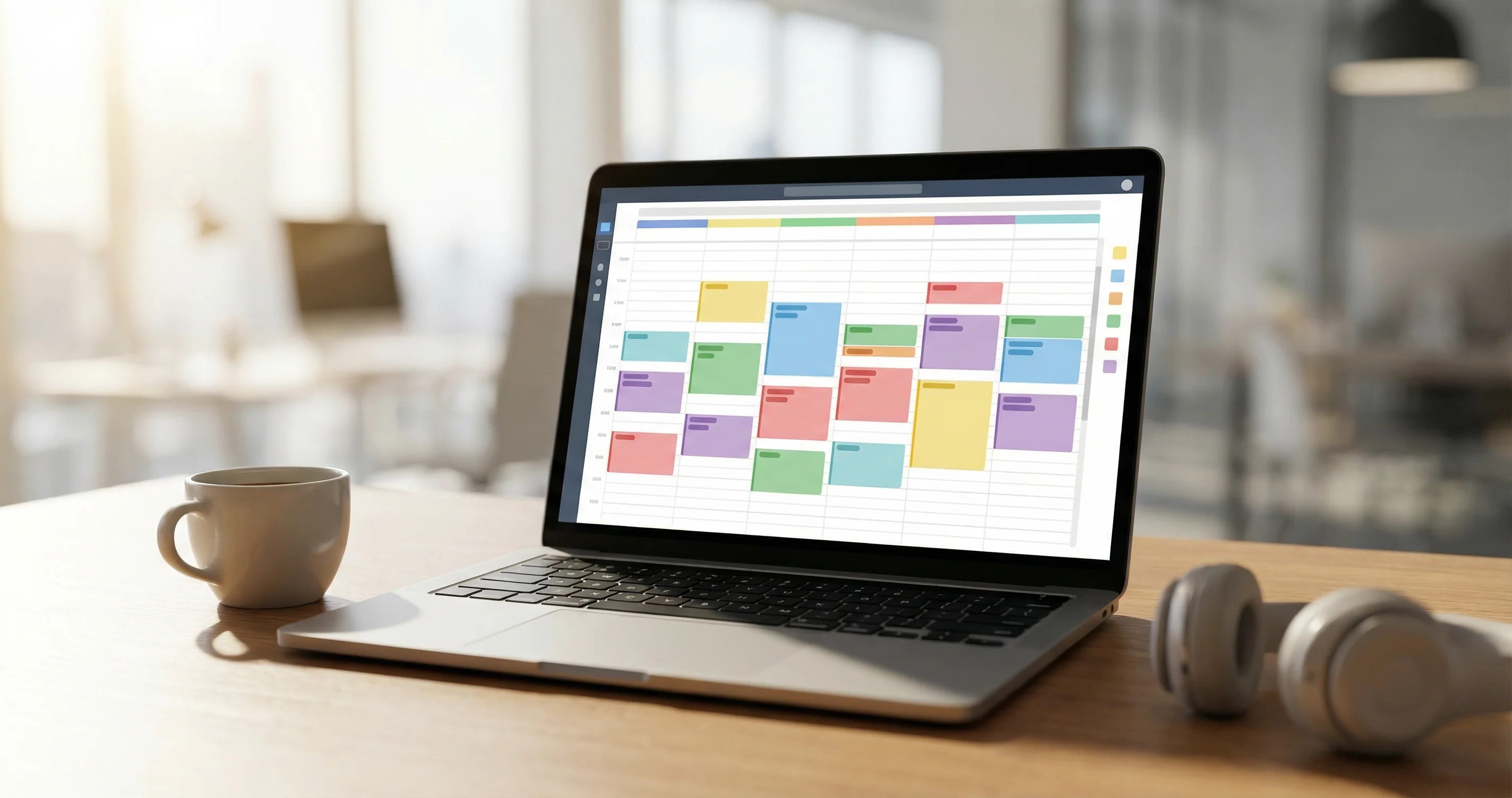
What Reclaim.ai Is
Reclaim.ai is a calendar assistant that works with your existing Google Calendar or Microsoft Outlook. It does not replace your calendar; it adds events to it. Reclaim blocks time for tasks, habits, and focus, syncs multiple calendars to avoid double-booking, and can create scheduling links so others can book time with you. You use it via the Reclaim app, a Google Calendar add-on, or Slack.
Connecting Your Calendar and Setting Hours
Sign up at reclaim.ai and connect your primary calendar (Google or Outlook). Reclaim will create events on this calendar. In Settings go to Hours and set your Working Hours (when you are available for work), Meeting Hours (when others can book you), and Personal Hours (when you are off). You can add Custom Hours for specific activity types. These settings control when Reclaim is allowed to place blocks. Without them, it may schedule at times you are not available.
Creating Tasks That Get Time on Your Calendar
Reclaim Tasks are flexible work items with deadlines. Click "+ New Task," name the task, set a due date, and optionally set how much time you need (e.g., 2 hours). Reclaim then finds open slots before the deadline and blocks that time on your calendar. You can also drag time directly on the Planner to lock a specific block. Tasks are flexible: if a meeting is added, Reclaim can move the task block to another open slot. Use tasks for project work, prep, or anything that must be done by a date but not at a fixed time.
Calendar Sync to Avoid Double-Booking
If you use more than one calendar (e.g., work and personal), use Calendar Sync so Reclaim sees all of them. Go to Calendar Sync, click "+ New Sync," and choose source and destination calendars. Configure options (color, visibility, which events to sync). Once syncing is on, events from the source calendar appear on the destination so Reclaim and your scheduling tools see a single view. That prevents Reclaim from blocking time when you are already busy on another calendar.
Habits and Recurring Blocks
Habits are recurring activities (e.g., daily standup prep or weekly review). Create a Habit, set how often and how long it should be, and Reclaim finds recurring slots that fit your schedule. Habits are flexible: if a meeting takes a slot, Reclaim moves the habit to another time. Use habits for routines that should happen regularly but do not need a fixed time.
Focus Time and Scheduling Links
Reclaim can block focus time so you have uninterrupted work periods. You can set a default duration and let Reclaim place focus blocks in open gaps. Scheduling Links are bookable links you share with others; when someone books a meeting, it appears on your calendar and Reclaim respects it when placing tasks and habits. Create links from the Reclaim dashboard and set your availability and meeting length.
Where Events Are Created
By default, Reclaim writes all its events (task blocks, habits, focus time) to your primary calendar. That is usually where meetings from others land, so you see one timeline. You can change the destination in settings if you use a different calendar as your main work calendar.
What to Do Next
After connecting your calendar and setting hours, add 3–5 tasks with due dates and see how Reclaim fills your week. Add one habit (e.g., 30 minutes of planning every Monday morning) and check that it moves when conflicts appear. Then enable Calendar Sync if you have multiple calendars, and create a Scheduling Link if you want others to book time with you.