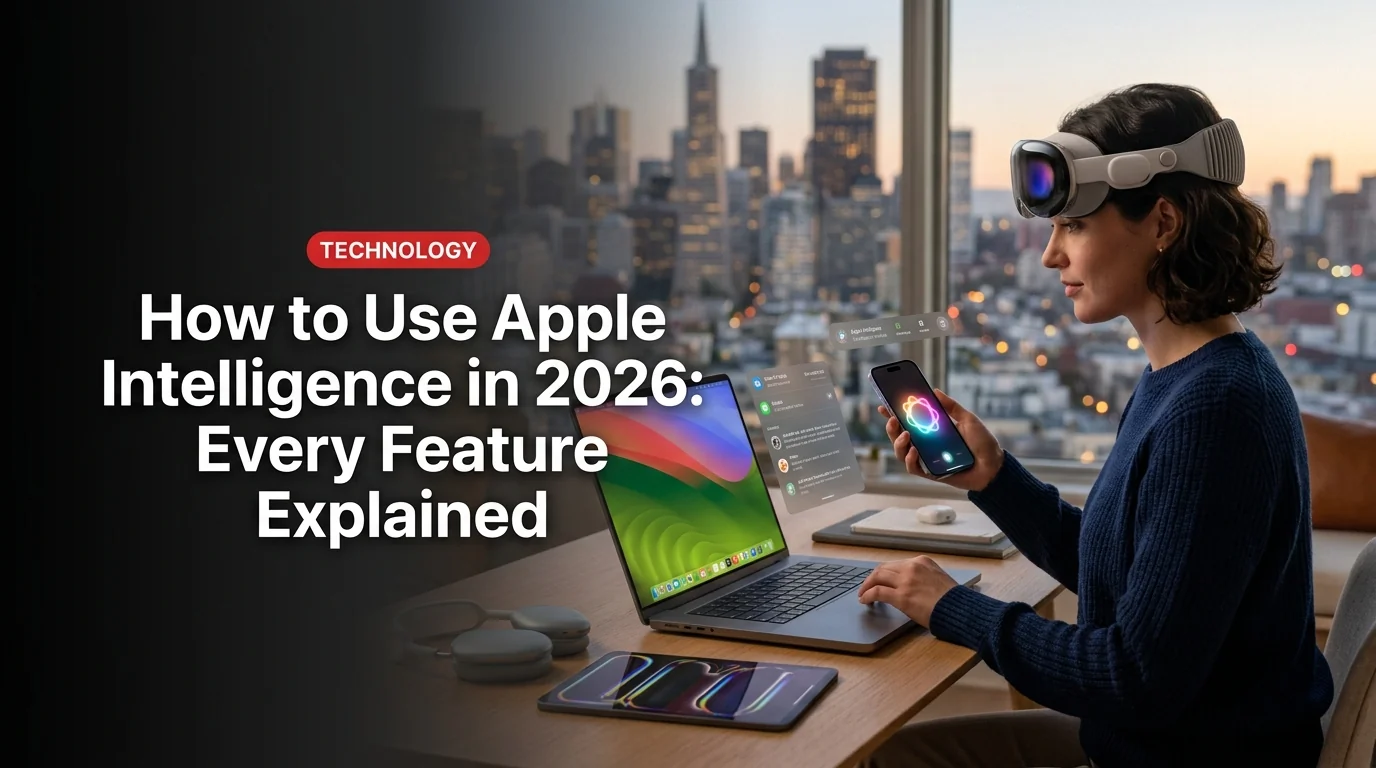
Apple Intelligence arrived with a quiet promise in 2024. By 2026, it has become the operating system. With iOS 26, iPadOS 26, and macOS Tahoe, Apple's on-device AI is no longer a novelty — it's embedded into nearly every app, every screen, and every interaction on your device.
This guide walks you through how to enable Apple Intelligence, what each feature actually does, and which ones are genuinely worth using right now.
What Devices Support Apple Intelligence in 2026?
Before anything else, check that your hardware qualifies. Apple Intelligence requires Apple silicon across all platforms.
- iPhone: iPhone 15 Pro / 15 Pro Max or newer (A17 Pro or later chip)
- iPhone 16 series: All models fully supported
- iPad: iPad mini (A17 Pro), any iPad with M1 chip or later
- Mac: Any Mac with M1, M2, M3, M4 or later chip (Intel Macs excluded)
- Apple Watch: Series 6 and later, all Ultra models, SE 2 and later (paired with compatible iPhone)
If you are on an iPhone 14 or earlier, or an Intel Mac, Apple Intelligence will not run. The processing happens on-device, which requires the Neural Engine in Apple's modern silicon.
Step 1: How to Turn On Apple Intelligence
Apple Intelligence is not enabled by default on every device. Here is how to turn it on:
First-time setup takes 15-30 minutes depending on your connection. After the model downloads, features become available gradually — Writing Tools appear first, image features come online next.
Language note: As of early 2026, Apple Intelligence supports English, Spanish, French, German, Japanese, Korean, and several other languages, with iOS 26.5 beta extending support into China.
Feature 1: Writing Tools — Your Systemwide AI Editor
Writing Tools is the feature you will use most. It is available almost anywhere you type — Mail, Notes, Pages, third-party apps, even text fields in Safari.
To access Writing Tools: select text, tap the arrow icon above your selection, then choose Rewrite, Proofread, Summarize, or adjust tone.
What Writing Tools can do:
- Proofread — catches grammar, spelling, and logical flow issues
- Rewrite — rewrites text in Friendly, Professional, Concise, or Empathetic style
- Summarize — condenses long text into a paragraph, bullet list, or action items table
- Smart Reply — in Mail, drafts a reply using context from the email thread
The Proofread feature in iOS 26 goes beyond grammar. It now flags logical inconsistencies and awkward phrasing, not just typos — a genuine upgrade over running text through a separate tool.
Feature 2: Enhanced Siri — Smarter, Faster, Contextual
Siri in 2026 is significantly more capable than the assistant from 2024. Apple has been transparent that the full redesign (codenamed Campo internally) is still rolling out across iOS 26.x updates.
What works right now:
- On-Screen Awareness: Siri can see what is on your screen and act on it
- Multi-step commands: Chain actions across multiple apps in a single request
- Type to Siri: Press and hold the side button to type instead of speaking
- App knowledge: Ask Siri how to do specific things in apps and get step-by-step guidance
Still rolling out — expected iOS 26.5 / late 2026:
- New standalone Siri app with chat history interface
- Google Gemini model integration (Apple-Google collaboration announced January 2026)
- Deeper personal context across all your apps simultaneously
Feature 3: Visual Intelligence — Point and Know
Visual Intelligence turns your iPhone camera into a real-time information engine. Access it by pressing the Camera Control button on iPhone 16 models, or via Control Center on older supported devices.
What you can identify:
- Restaurants — ratings, hours, and popular dishes from a single tap on a storefront
- Posters and flyers — extract event dates directly into Calendar, artists into Apple Music
- Plants, animals, landmarks, artwork, sculptures, and books
- Text in images — translate, copy, or search any visible text instantly
New in iOS 26 — Screenshot integration: Visual Intelligence now works on screenshots, not just live camera. Use Highlight to Search — circle any object in a screenshot and run an image search. This is powered in part by ChatGPT integration for web-based queries.
Practical use cases:
- Spot a wine at a restaurant? Point at the label for instant reviews.
- See a design you like? Circle it in a screenshot to find where to buy it.
- Traveling abroad? Point at a menu for instant translation.
Feature 4: Image Creation — Genmoji, Image Playground, and Clean Up
Apple built three distinct image generation tools into Apple Intelligence, each with a different purpose.
- Genmoji creates custom emoji from text descriptions or contact photos
- Image Playground generates images inside Messages, Freeform, or its standalone app
- Clean Up removes distracting objects from photos with a single tap
- Image Wand converts rough sketches into polished illustrations
- All processing happens on-device for privacy
- Image Playground style options are limited to Illustration, Animation, and Sketch
- Genmoji results can be inconsistent for complex descriptions
- Clean Up struggles with complex backgrounds or overlapping subjects
How to use Genmoji: Open iMessage, tap the emoji button, select the sparkle icon, and type a description. You can also generate a Genmoji from a contact photo for personalized reaction stickers.
How to use Clean Up in Photos: Open any photo, tap Edit, then tap the Clean Up brush. Circle the object you want removed. Works best on simple, uniform backgrounds.
Feature 5: Communication and Organization
Apple Intelligence enhances the apps you use for communication in ways that go beyond writing assistance.
Phone and Calls:
- Call Recording with Transcripts: Record any phone call directly into Notes. Apple Intelligence transcribes it, labels speakers, and generates a summary — useful for interviews and business calls.
- Voicemail Summaries: See a text summary of voicemails before you listen.
- Live Translation: Real-time translation in Phone, FaceTime, and Messages. Works in-ear with AirPods.
Mail and Messages:
- Priority notifications: Surfaces urgent emails and messages, deprioritizing marketing automatically.
- Notification summaries: Grouped summary per app instead of a wall of individual pings.
- Poll suggestions: If a group chat discusses options, Apple Intelligence can suggest a poll.
Reminders and Calendar:
- Siri proposes reminders based on context in your messages and conversations.
- Visual Intelligence adds events from physical flyers directly to Calendar.
Feature 6: ChatGPT Integration — When Apple Hands Off
Apple Intelligence is honest about its limits. For queries beyond what the on-device model can handle, iOS 26 can route requests to ChatGPT — but only with your explicit permission.
To enable ChatGPT handoff: go to Settings > Apple Intelligence and Siri > ChatGPT and toggle it on. You can be prompted before each handoff, or set it to automatic.
Apple has announced a future option to use Google Gemini instead of ChatGPT — a result of the multi-year collaboration announced in January 2026.
Is Apple Intelligence Worth Enabling?
If your device supports it — yes, without hesitation. Writing Tools alone justify turning it on immediately. Visual Intelligence is genuinely useful once you build the habit of reaching for Camera Control. The Siri upgrades are real but incremental; the full transformation is still in progress.
Apple's approach prioritizes on-device processing, which means your data does not leave your phone for most operations. That privacy-first model is meaningful compared to cloud-first alternatives.
The full Apple Intelligence vision — a proactive, context-aware Siri that knows your life — is still materializing through 2026 updates. But what is available today is already the most practically useful AI integration on any mobile platform.