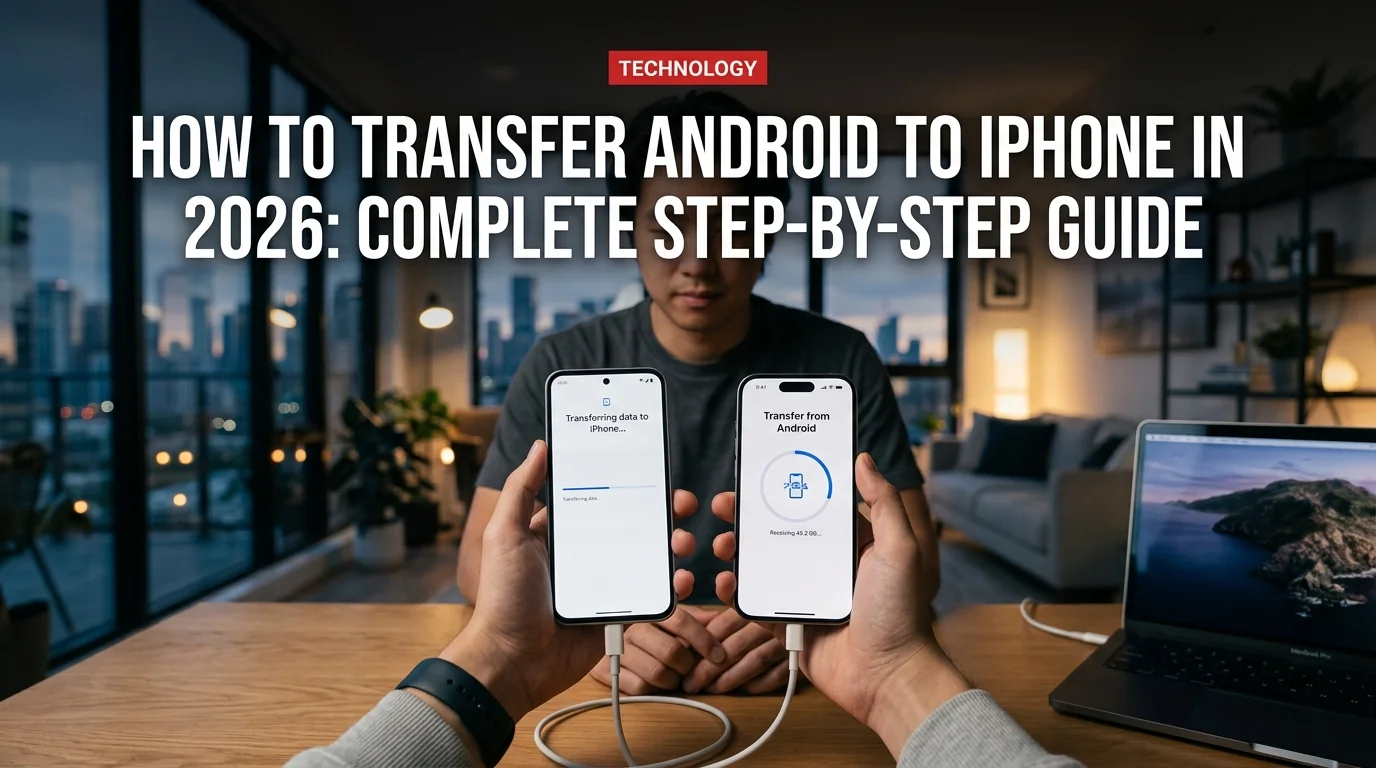
Switching from Android to iPhone is more popular than ever in 2026, with the Galaxy S26 and iPhone 17 both hitting shelves. The good news: Apple's Move to iOS app makes the migration smoother than it's ever been, now supporting WhatsApp chats, call history, and even accessibility settings. Here's exactly how to do it — and what to expect.
Before You Start: The Checklist
Don't skip this step. Failing to prep is the #1 reason transfers fail or cut off midway.
- Charge both phones to at least 80% (or keep them plugged in throughout)
- Connect both devices to the same stable Wi-Fi network
- Your iPhone must be new or freshly erased — Move to iOS only works during initial setup
- Android must be running Android 5.0 or later (Android 6.0+ for WhatsApp)
- Set Android screen timeout to maximum (10 min or "Never") to prevent dropout
- Free up space: your iPhone needs at least as much storage as the data you're transferring
- Update WhatsApp on Android to the latest version before starting
One critical note: If you've already set up your iPhone, you'll need to erase it first. Go to Settings → General → Transfer or Reset iPhone → Erase All Content and Settings. Then start the setup process from scratch.
What Transfers with Move to iOS
Here's what the official Move to iOS app will move for you automatically:
- ✅ Contacts
- ✅ SMS message history
- ✅ Camera photos and videos
- ✅ Photo albums
- ✅ Web bookmarks (Chrome bookmarks transfer if Chrome is updated)
- ✅ Email accounts
- ✅ Calendars
- ✅ WhatsApp messages, photos, videos, and voice notes
- ✅ Call history
- ✅ Voice Memos
- ✅ Files and folders
- ✅ Accessibility and display settings
- ✅ Some free apps (if available on the App Store)
Step-by-Step: How to Transfer Using Move to iOS
Step 1 — Start Your iPhone Setup
Turn on your new iPhone and follow the on-screen instructions. When you reach the "Apps & Data" screen, tap "Move Data from Android."
Step 2 — Download Move to iOS on Android
On your Android device, open the Google Play Store and search for "Move to iOS." Download and open the app. Tap Continue, accept the terms, and grant any requested permissions.
Step 3 — Connect the Two Devices
Tap Continue on your iPhone's "Move from Android" screen. A 6-digit or 10-digit code will appear. Enter that code on your Android device.
This creates a temporary private Wi-Fi connection between the two phones — they don't need to be on the same network for this part, as they create their own.
Step 4 — Choose What to Transfer
On your Android device, the Transfer Data screen appears. Select everything you want to move:
- Contacts
- Message history
- Camera Roll (photos + videos)
- WhatsApp content (if you have WhatsApp installed and updated)
- Mail accounts
- Calendars
- Accessibility settings
Tap Continue to start.
Step 5 — Wait (Don't Touch Anything)
Keep both phones near each other and plugged in. The transfer time varies:
- Under 10GB: ~5–15 minutes
- 10–30GB: ~20–45 minutes
- 30GB+: 1–2 hours
Don't lock either screen or use any other apps. When the iPhone's loading bar completes, you're done.
Step 6 — Finish iPhone Setup
Tap Done on Android. Tap Continue Setting Up iPhone and follow the remaining steps. You may be prompted to download matched free apps from the App Store — do this over Wi-Fi.
What Doesn't Transfer — And How to Fix It
Move to iOS is comprehensive but not perfect. Here's what falls through the gaps and what to do about it:
- Contacts, SMS, and photos transfer completely
- WhatsApp chats and media included (official support since 2022)
- Accessibility and display settings carry over
- Free apps matched automatically where available
- No third-party software needed
- Paid apps must be re-purchased or re-downloaded manually
- Music from Spotify/Apple Music is account-based — just sign back in
- Google Drive WhatsApp backups can't restore directly to iCloud
- WhatsApp Business chats don't transfer
- iPhone must be new or erased — can't transfer mid-setup
Music: If you use Spotify or YouTube Music, just sign back in on your iPhone — your playlists are in the cloud. Apple Music subscribers will find their library waiting. Local MP3 files need to be transferred manually via a computer.
Paid apps: Any app you purchased on Google Play won't carry over. If there's an iOS equivalent, you'll need to re-buy it on the App Store. Check if a cross-platform subscription covers both (many do — Adobe, Microsoft 365, etc.).
Google services: Gmail, Google Photos, Google Drive — just download the apps from the App Store and sign in. Your data is in Google's cloud, not on the phone.
Faster Option: USB-C Cable Transfer
For large transfers (20GB+), a direct cable connection is significantly faster than Wi-Fi. Use a USB-C to USB-C cable (or USB-C to Lightning if you have an older iPhone model) to connect your Android directly to your iPhone during the Move to iOS process. The app will detect the cable and prioritize it automatically.
Alternative: Transfer via Computer
If Move to iOS isn't working (it occasionally fails on older Android versions), you can:
- Google Photos → iCloud Photos: Download Google Photos backup to your computer, then upload to iCloud.com
- Contacts: Export as VCF from Google Contacts, import to iCloud Contacts
- Third-party apps: Dr.Fone, MobileTrans, or iCareFone Transfer offer paid alternatives that work after initial iPhone setup
FAQ
Can I use Move to iOS if I already set up my iPhone? No. You need to erase your iPhone first: Settings → General → Transfer or Reset iPhone → Erase All Content and Settings.
Does WhatsApp actually transfer from Android to iPhone? Yes, as long as both devices use the same phone number, have WhatsApp updated to the latest version, and you select WhatsApp in the Move to iOS transfer screen. Chat history, photos, videos, and voice notes all transfer. Call history and WhatsApp Business chats don't.
How long does it take? For a typical phone with 15–25GB of data, expect 20–40 minutes. Keep both phones plugged in and on the same Wi-Fi network.
Will my apps transfer? Move to iOS will attempt to match free apps with their App Store equivalents. Paid apps need to be re-downloaded and may require repurchase.
Do I need the same phone number on both devices? For general data transfer — no. For WhatsApp specifically — yes, both phones must use the same number for the WhatsApp migration to work.
Switching phones in 2026 is genuinely easier than it was even two years ago. With Move to iOS handling everything from WhatsApp to accessibility settings, most users can be fully up and running on iPhone within an hour.