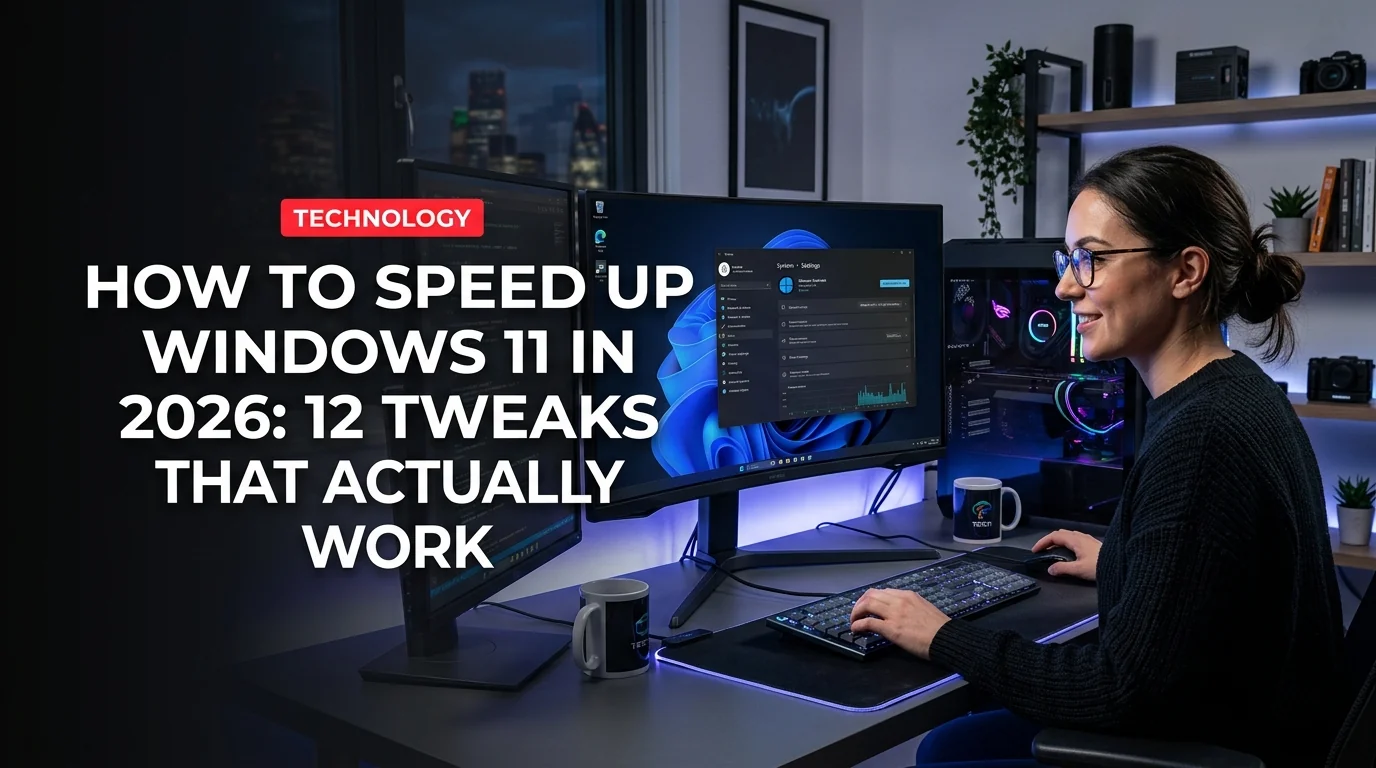
If your Windows 11 PC feels sluggish in 2026, you're not imagining it. The Windows 11 24H2 update shipped with more background processes, new AI features like Recall, and extra bloatware that quietly drain your CPU and RAM. The good news: most of the slowdown is fixable in under 30 minutes.
This guide covers 12 tweaks ranked by impact — from the fastest wins to the deeper under-the-hood fixes — all tested on Windows 11 24H2.
1. Disable Startup Programs (5 minutes, high impact)
The single fastest fix. Every app that launches at boot steals startup time and background RAM.
Open Task Manager (Ctrl+Shift+Esc) > click the Startup apps tab > sort by Startup impact and disable everything you don't need immediately at boot. Common culprits: OneDrive, Microsoft Teams, Discord, Spotify, Adobe Updater, and gaming launchers.
Alternatively: Settings > Apps > Startup.
A clean startup can cut boot time by 30–60 seconds on a mid-range machine.
2. Kill the Windows Widgets (2 minutes, high impact)
Widgets — the weather/news panel in the taskbar — is one of the worst performance offenders in Windows 11 24H2. It runs a persistent background process called Windows Web Experience Pack that consumes CPU and RAM even when you never open it.
Disable it via: Settings > Personalization > Taskbar > toggle off Widgets.
For a permanent fix, uninstall it entirely in PowerShell (run as Admin):
winget uninstall "Windows Web Experience Pack"
3. Switch to High Performance Power Plan (3 minutes, high impact)
By default, Windows 11 uses the Balanced power plan, which throttles your CPU to save power — even on desktops plugged into the wall.
Open Run (Win+R) > type powercfg.cpl > select High Performance.
For desktops, unlock the hidden Ultimate Performance plan via Command Prompt (Admin):
powercfg -duplicatescheme e9a42b02-d5df-448d-aa00-03f14749eb61
Then go back to powercfg.cpl and select Ultimate Performance. This removes all CPU throttling and is the single biggest boost for desktops.
4. Disable Recall and Copilot+ AI Features (2 minutes, high impact)
If you have a Copilot+ PC (Qualcomm Snapdragon X, AMD Ryzen AI 300, or Intel Core Ultra 200V series), Windows 11 24H2 enables Recall by default — a feature that continuously screenshots your screen and indexes everything you do. It's a significant disk and CPU drain.
Disable it: Settings > Privacy & security > Recall & snapshots > toggle off.
Or via PowerShell (Admin):
Dism /Online /Disable-Feature /FeatureName:Recall
Also disable AI-powered notifications: Settings > System > Notifications > turn off "AI-powered recommendations."
5. Turn Off Visual Effects and Animations (5 minutes, medium-high impact)
Windows 11's animations look polished but cost GPU and CPU cycles — especially on older hardware.
Press Win+R > type sysdm.cpl > Advanced tab > Performance > Settings > select Adjust for best performance.
For a middle ground, uncheck only the most expensive effects:
- Animate windows when minimizing/maximizing
- Fade or slide menus into view
- Animations in the taskbar
Also: Settings > Accessibility > Visual effects > disable Transparency effects and Animation effects.
6. Debloat Windows 11 (10 minutes, medium-high impact)
Windows 11 24H2 ships with Clipchamp, Xbox apps, mixed reality tools, Cortana remnants, and other apps that run background services you never asked for.
The fastest way to remove them is Winutil by Chris Titus Tech — a free, open-source GUI debloater. In PowerShell (Admin):
irm christitus.com/win | iex
This opens a GUI where you can remove bloatware, apply privacy tweaks, and optimize services in bulk with one click. It's the fastest single-step cleanup tool available for Windows 11.
For manual removal, use PowerShell to list and remove specific apps:
Get-AppxPackage *clipchamp* | Remove-AppxPackage
Get-AppxPackage *xbox* | Remove-AppxPackage
7. Disable Unnecessary Background App Permissions (5 minutes, medium impact)
Settings > Apps > Installed apps > click each app > Advanced options > set "Let this app run in the background" to Never for apps you only open manually (Spotify, Photos, Calculator, etc.).
Check your top consumers at Settings > System > Power & battery > Battery usage — this shows which apps are eating resources even when closed.
8. Disable SysMain (Superfetch) on SSDs (2 minutes, medium impact)
SysMain (formerly Superfetch) preloads apps into RAM to speed up launches — useful on spinning hard drives, but unnecessary overhead on SSDs, which are already fast enough.
Disable via PowerShell (Admin):
Set-Service -Name SysMain -StartupType Disabled
Stop-Service -Name SysMain
You'll see a reduction in background disk activity almost immediately.
9. Enable TRIM and Optimize SSD Settings (5 minutes, medium impact)
Windows 11 should have TRIM enabled automatically, but it's worth verifying. In Command Prompt (Admin):
fsutil behavior query DisableDeleteNotify
0 means TRIM is enabled (good). If you see 1, run:
fsutil behavior set DisableDeleteNotify 0
Also: open dfrgui (Disk Defragmenter) > Change settings > make sure your SSD drives are NOT scheduled for weekly defragmentation — defragging an SSD shortens its lifespan without improving speed.
- Most tweaks take under 5 minutes each
- No third-party software required for the majority
- Gains are cumulative — doing all 12 stacks up
- Free — no paid tools needed
- Some PowerShell commands require Admin rights
- Ultimate Performance plan increases power consumption on desktops
- Debloating apps can break some Microsoft integrations
- Disabling HAGS (tip 11) requires testing per-GPU
10. Enable Storage Sense and Clean Up Disk (3 minutes, medium impact)
Settings > System > Storage > enable Storage Sense and set it to run weekly. It auto-deletes temp files, old update packages, and Recycle Bin contents.
For a deeper one-time cleanup, run Disk Cleanup as Admin (Win+R > cleanmgr) and check all boxes including "Clean up system files." Then run:
Dism /Online /Cleanup-Image /StartComponentCleanup /ResetBase
This removes superseded Windows update components — often freeing 5–15 GB on older installs.
11. Test Hardware-Accelerated GPU Scheduling (HAGS)
24H2 promotes HAGS as a performance feature, but it causes stuttering and frame drops on older NVIDIA/AMD GPUs (GTX 10-series, RX 500-series). On newer GPUs (RTX 30/40-series, RX 6000/7000), it's generally a net positive.
Test it: Settings > System > Display > Graphics > Change default graphics settings > toggle Hardware-Accelerated GPU Scheduling.
If you see stutters or micro-freezes in apps or games after 24H2, try toggling this off.
12. Update GPU and Chipset Drivers Directly (10 minutes, medium impact)
Windows Update installs generic drivers, not optimized ones. Get your GPU drivers directly from:
- NVIDIA: nvidia.com/drivers
- AMD: amd.com/support
- Intel Arc: intel.com/content/www/us/en/download-center
For chipset drivers (critical for AMD Ryzen systems), download from your motherboard manufacturer's support page, not Windows Update. Outdated chipset drivers are a common hidden bottleneck that most guides ignore.
- Windows 11 24H2 shipped October 2024 with Recall, more bloatware, and mandatory Copilot features
- Widgets alone can use 150–250MB RAM on idle systems
- The Ultimate Performance power plan is hidden by default and must be unlocked via command line
- SysMain/Superfetch was designed for HDDs — on NVMe SSDs it's pure overhead
- Winutil (Chris Titus Tech) is free, open-source, and updated regularly for 24H2 compatibility
- Disabling startup apps is the highest-impact, lowest-risk tweak for most users
Which Tweaks Should You Do First?
If you have 10 minutes, do these four in order: disable startup apps, kill Widgets, switch power plan to High Performance, and turn off Recall if you have a Copilot+ PC. That combination alone will make a noticeable difference on most systems.
If your PC is still slow after all 12 tweaks, the bottleneck is likely hardware — specifically RAM below 16GB or a traditional spinning hard drive. Upgrading to 16GB DDR4/DDR5 RAM or adding an NVMe SSD will do more than any software tweak.
Windows 11 24H2 is a heavier OS than it looks on paper, but with the right settings, it runs lean. The tweaks above take your system from bloated defaults to an optimized setup that actually performs.