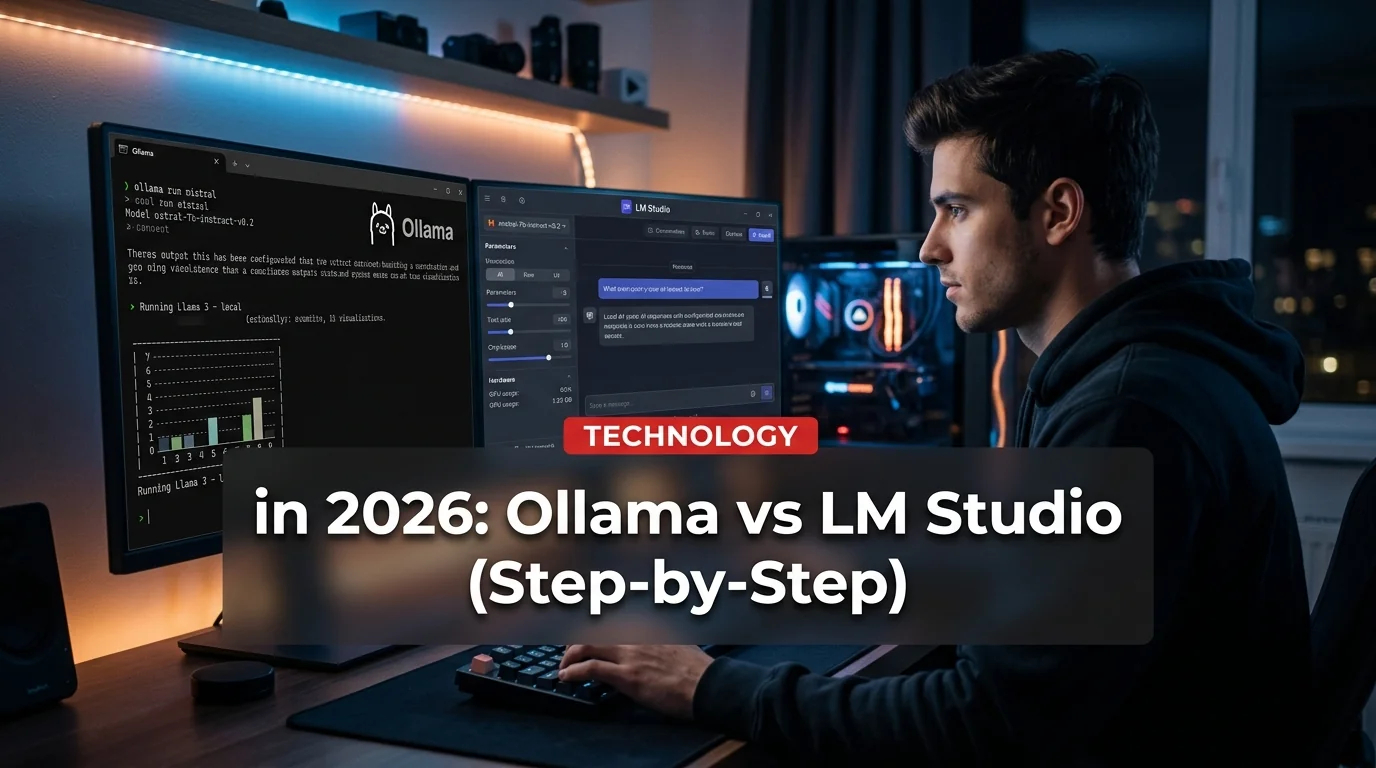
Running AI locally on your own machine used to require a PhD in Linux and a server rack. In 2026, it takes about five minutes. Tools like Ollama and LM Studio have made private, offline AI accessible to anyone — and the models available today rival GPT-4o for most everyday tasks.
This guide covers everything: which tool to pick, which models are worth running, what hardware you actually need, and how to get set up in under 10 minutes.
Why Run AI Locally?
Before the how, the why. Local AI is worth the setup effort for several real reasons:
- Privacy — your prompts never leave your machine. Sensitive work, medical questions, legal drafts — all processed offline.
- No subscription costs — ChatGPT Plus costs $20/month. Running Llama 3.3 or Mistral locally costs $0/month forever.
- No rate limits — generate as much text, code, or analysis as you want, as fast as your hardware allows.
- Works offline — no Wi-Fi needed. Great for travel, air-gapped environments, or just avoiding cloud outages.
- Customization — swap models, tune parameters, integrate into your own tools via API.
What Hardware Do You Need?
The good news: even an M1 MacBook Air or a mid-range Windows laptop from 2022 can run capable 7B models at a perfectly usable speed.
The Two Best Tools: Ollama vs LM Studio
- Terminal-based, lightweight, fast to install
- One-command model download and run
- Built-in REST API (OpenAI-compatible)
- Perfect for developers and power users
- Runs headless on servers/NAS devices
- Full desktop GUI — no terminal needed
- Built-in chat interface (like a local ChatGPT)
- Easy model browsing and download
- Great for non-technical users
- Also includes local server mode
Bottom line: Developers should start with Ollama. Everyone else should start with LM Studio.
How to Set Up Ollama (5 Minutes)
Ollama works on macOS, Linux, and Windows.
Step 1: Install Ollama
Download the installer from ollama.com and run it — that's it. On macOS/Linux you can also run:
curl -fsSL https://ollama.com/install.sh | sh
Step 2: Pull a model
Open a terminal and run:
ollama pull llama3.2
This downloads Meta's Llama 3.2 (3B, ~2GB). For a more capable model:
ollama pull mistral
ollama pull gemma2
ollama pull qwen2.5
Step 3: Start chatting
ollama run llama3.2
You'll see a prompt. Type your message and press Enter. That's your free, private AI assistant.
Step 4 (Optional): Use the API
Ollama runs a local server on port 11434. You can call it from any app:
curl http://localhost:11434/api/generate -d '{
  "model": "llama3.2",
  "prompt": "Explain quantum computing in one paragraph"
}'
The API is OpenAI-compatible, so you can drop Ollama into any tool that supports custom API endpoints — including Cursor, Continue, and Open WebUI.
How to Set Up LM Studio (5 Minutes)
Step 1: Download LM Studio from lmstudio.ai. Install it like any desktop app.
Step 2: Open LM Studio and go to the Discover tab. You'll see a searchable model library. Search for "Llama" or "Mistral" and click Download on any model.
Step 3: Switch to the Chat tab. Select your downloaded model from the dropdown at the top. Start chatting — it looks and works exactly like ChatGPT.
Step 4 (Optional): Go to the Local Server tab and click Start Server. LM Studio now runs on port 1234 with an OpenAI-compatible API, usable by any app.
Best Free Models to Run in 2026
- Llama 3.3 70B (Q4) — Best overall quality; needs 40GB+ RAM or a good GPU
- Llama 3.2 3B — Fast, tiny, surprisingly capable; runs on anything
- Mistral 7B Instruct — Excellent for coding and analysis; great 8GB RAM pick
- Gemma 2 9B — Google's model; strong reasoning, clean outputs
- Qwen 2.5 Coder 7B — Best local model for writing and debugging code
- Phi-3 Mini — Microsoft's 3.8B model; extremely fast, runs on low-end hardware
- DeepSeek-R1 7B — Reasoning model; thinks step-by-step like o1
For most users, Mistral 7B or Llama 3.2 3B is the right starting point. If you have a GPU with 8GB+ VRAM or 32GB+ RAM, upgrade to Gemma 2 9B or Llama 3.3 70B for noticeably better answers.
Tips to Get the Most Out of Local AI
1. Use Open WebUI for a better chat interface Open WebUI is a free, self-hosted frontend that works with Ollama. It gives you conversation history, file uploads, and multi-model switching — all in your browser. Install it via Docker in one command.
2. Connect to your IDE VS Code users: install the Continue extension and point it at your local Ollama server. You get free Copilot-style AI code completion with zero API costs.
3. Quantization matters Smaller quantizations (Q2, Q3) fit in less RAM but lose quality. Q4_K_M is the sweet spot — about 5-10% quality loss for a 50% size reduction. Avoid Q8 unless you have plenty of VRAM.
4. System prompts unlock better behavior Both Ollama and LM Studio let you set system prompts. Use them: tell the model its role, output format, and constraints. A good system prompt makes a 7B model feel like a 13B model.
5. GPU acceleration is a game changer Even a budget GPU (RTX 3060, RX 6600) can run 7B models at 60+ tokens/second — about 4x faster than CPU. If you're on a desktop, a used RTX 3070 for $200 transforms the experience.
Ollama vs LM Studio: Which Should You Choose?
If you're a developer who wants to build apps or integrations: Ollama. Its API is clean, it starts fast, and it's trivial to script.
If you want a ChatGPT replacement you can just open and talk to: LM Studio. The GUI is polished, model downloads are easy, and no terminal knowledge is required.
Many users end up running both: LM Studio for casual chat, Ollama for powering local automations.
Final Checklist Before You Start
- Check your RAM: 8GB minimum, 16GB recommended
- SSD required (model loading on HDD is very slow)
- Download Ollama or LM Studio from official sites only
- Start with a small model (3B-7B) before going bigger
- For coding tasks, try Qwen 2.5 Coder or Mistral first
- Use Q4_K_M quantization for the best quality-size balance
Running AI locally is now easier than setting up a WordPress site. The privacy benefits, zero cost, and offline capability make it worth the 10-minute setup for anyone who uses AI tools regularly. Start with Ollama or LM Studio today — your data stays on your machine, and your wallet stays in your pocket.