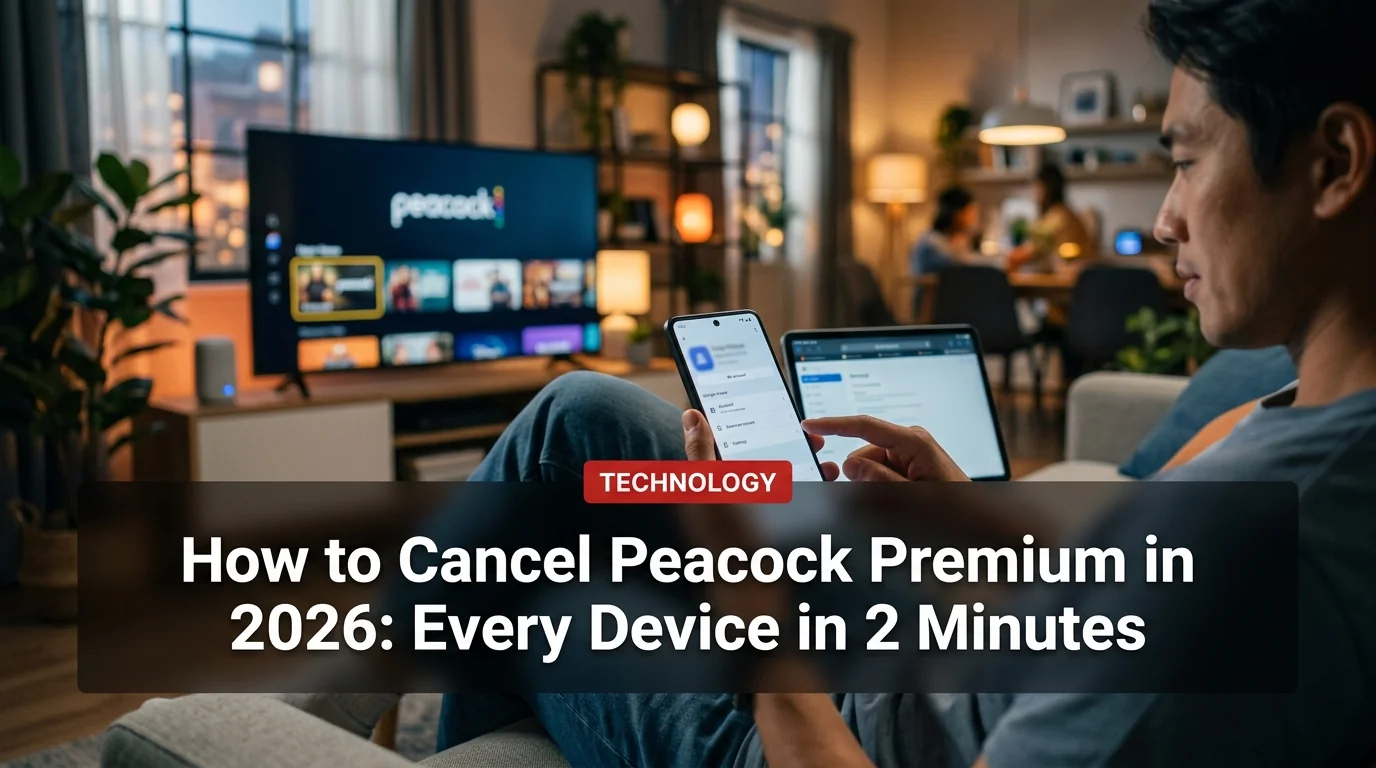
Canceling Peacock is straightforward once you know which method to use — the tricky part is that the cancellation process differs depending on how you originally signed up. If you subscribed through Apple, you cancel through Apple. If you signed up through Roku, Roku handles it. Only web signups let you cancel directly on Peacock's site.
This guide covers every path so you can cancel in under two minutes regardless of how you signed up.
What You Need to Know Before Canceling
- Free tier exists: After canceling Peacock Premium or Premium Plus, you drop to Peacock Free — which still includes a library of older content, news, and some sports highlights at no cost.
- NBA Playoffs and Premier League are on Peacock — if that's why you subscribed, make sure the season is over before you cancel or you'll lose access to live games.
- WWE programming moved to Netflix in 2025 but some PPV events remain on Peacock Premium. Check your viewing schedule before canceling.
- No cancellation fee — you can cancel anytime.
Method 1: Cancel on Peacock's Website (Direct Signups)
This applies if you signed up directly on peacocktv.com using a credit card, PayPal, or Google Pay.
Step 1: Go to peacocktv.com and sign in to your account.
Step 2: Click your profile icon in the top right corner and select Account.
Step 3: Scroll to the Plans section. You'll see your current plan listed with a Change Plan or Cancel Plan option.
Step 4: Click Cancel Plan. Peacock will show you what you'll lose access to and may offer a discount to stay — you can decline.
Step 5: Confirm the cancellation. You'll receive a confirmation email immediately. Your access continues until the billing cycle ends.
Method 2: Cancel on iPhone or iPad (Apple/iOS Signups)
If you signed up through the Peacock iOS app, Apple processes your billing. You must cancel through Apple Settings — canceling inside the Peacock app won't work.
Step 1: Open Settings on your iPhone or iPad.
Step 2: Tap your name at the top, then tap Subscriptions.
Step 3: Find Peacock in the list and tap it.
Step 4: Tap Cancel Subscription and confirm.
Alternatively: open the App Store → tap your profile photo → tap Subscriptions → find Peacock → Cancel.
Method 3: Cancel on Android (Google Play Signups)
Step 1: Open the Google Play Store app.
Step 2: Tap your profile photo → Payments & subscriptions → Subscriptions.
Step 3: Find Peacock and tap it.
Step 4: Tap Cancel subscription and follow the prompts.
Method 4: Cancel on Roku
Step 1: Press the Home button on your Roku remote.
Step 2: Navigate to the Peacock channel and highlight it (don't open it).
Step 3: Press the Star (*) button to open the options menu.
Step 4: Select Manage subscription, then Cancel subscription.
You can also cancel via Roku's website: go to my.roku.com, sign in, click Manage account → Manage subscriptions → find Peacock → Cancel.
Method 5: Cancel on Amazon Fire TV or Prime Video Channels
If you added Peacock through Amazon (Prime Video Channels or Fire TV):
Step 1: Go to amazon.com and sign in.
Step 2: Go to Account & Lists → Memberships & Subscriptions.
Step 3: Find Peacock and click Cancel channel.
Alternatively on your Fire TV: Settings → Applications → Manage Installed Applications → Peacock → Subscriptions → Cancel.
Method 6: Cancel on Apple TV (tvOS App)
If you signed up inside the Apple TV app on your Apple TV device:
Step 1: Open Settings on your Apple TV.
Step 2: Select Users and Accounts → your account name → Subscriptions.
Step 3: Select Peacock and choose Cancel Subscription.
- Direct signup = cancel at peacocktv.com
- iOS App Store signup = cancel in iPhone Settings → Subscriptions
- Android Google Play signup = cancel in Play Store → Subscriptions
- Roku signup = cancel via Roku remote or my.roku.com
- Amazon signup = cancel via amazon.com account settings
- Apple TV signup = cancel in Apple TV Settings
What Happens After You Cancel?
Once you cancel:
- You keep Premium access until the end of your current billing period
- You're downgraded to Peacock Free automatically — no action needed
- Your watchlist and viewing history are saved if you ever resubscribe
- You will not be charged again unless you manually resubscribe
Peacock Free includes a smaller content library but is genuinely free — no credit card required. It covers news, some reality TV, older movies, and select NBC shows.
How to Pause Peacock Instead of Canceling
Peacock does not currently offer a built-in subscription pause feature (unlike Hulu, which does). Your only options are:
- Cancel now and resubscribe later
- Downgrade from Premium Plus to the cheaper Premium plan if your issue is cost
If you cancel and resubscribe within 12 months, your watchlist and account preferences are restored automatically.
- Immediate cost savings ($8–$14/month)
- Peacock Free still available at no cost
- Easy to resubscribe for NBA Playoffs or Premier League season
- No cancellation fee or penalty
- Lose access to live NBA Playoffs games
- Lose Premier League matches not on other services
- Some Bravo, E!, and NBC content only on Peacock
- No pause option — full cancel required
Alternatives to Peacock
If you're canceling because the content doesn't justify the cost:
- Sling TV Blue ($40/month) — includes NBC, Bravo, and Peacock content in many markets
- Hulu ($8/month) — overlapping NBC/Universal content with a larger library overall
- FuboTV — Premier League alternative for soccer fans
- YouTube TV — includes NBC in most markets for live sports and news