Canceling Netflix takes less than two minutes — but only if you know where to look. The steps differ depending on how you subscribed, and if you signed up through Apple, Google, or Amazon, you'll cancel in a completely different place than the Netflix website. This guide covers every device and method so you don't waste time hunting through menus.
Before You Cancel: Two Things to Check
Where did you subscribe? This determines where you cancel. If you signed up directly at Netflix.com (most common), you cancel on Netflix's website. If you subscribed through the App Store, Google Play, Amazon, or your cable/TV provider, you cancel there — not on Netflix's site.
Do you want to pause instead? Netflix lets you pause your membership for 1-3 months. You keep your profile, watchlist, history, and downloads during the pause. This is worth considering if you're canceling due to temporary budget concerns or a content lull.
Method 1: Cancel Netflix on the Web (Most Common)
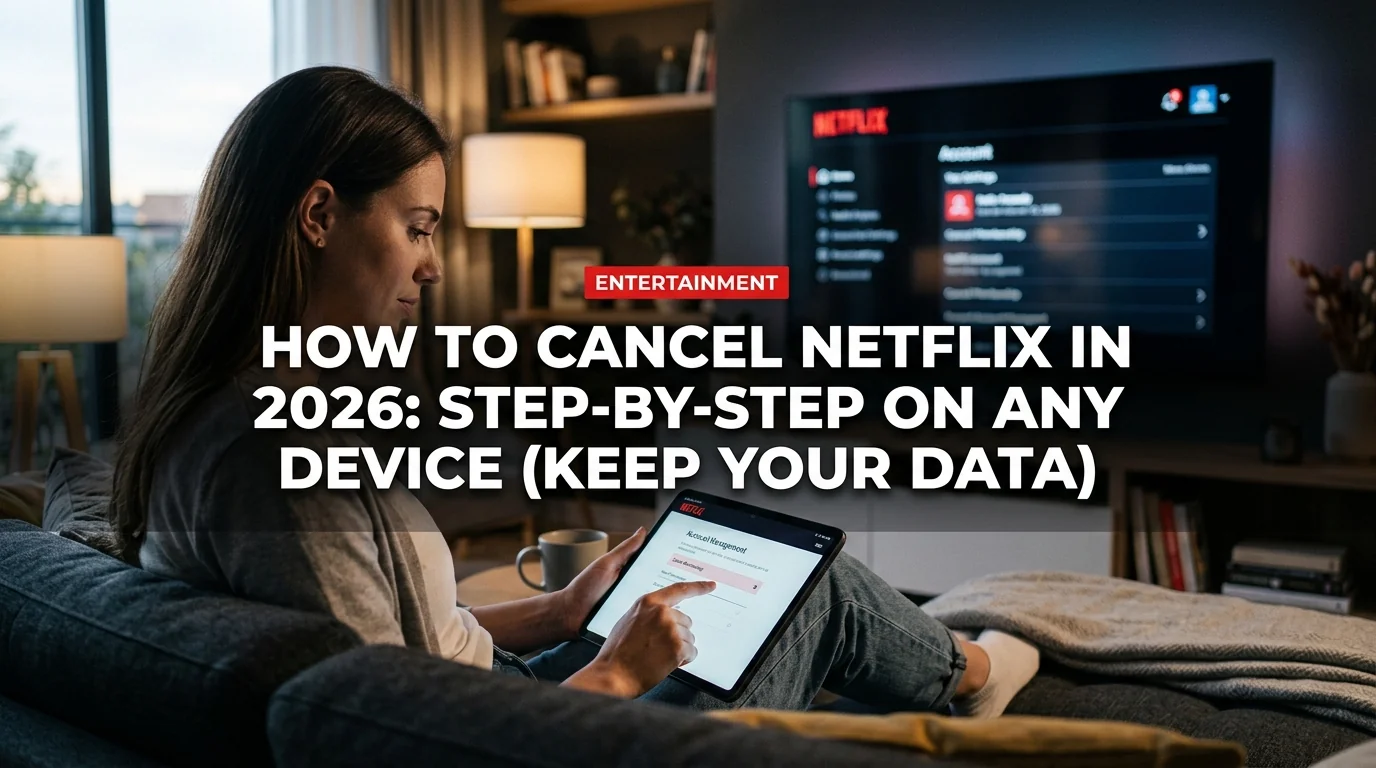
If you subscribed directly through Netflix, this is how to cancel:
- Go to netflix.com and sign in
- Click your profile icon in the top-right corner
- Select "Account" from the dropdown menu
- Under "Membership," click "Cancel Membership"
- Click "Finish Cancellation" to confirm
You'll receive a confirmation email immediately. Your subscription continues until the end of your current billing period — you're not cut off right away.
Method 2: Cancel Netflix on iPhone or iPad
If you subscribed through the Apple App Store, you must cancel through Apple — not Netflix:
- Open Settings on your iPhone or iPad
- Tap your name at the top (Apple ID)
- Tap "Subscriptions"
- Find Netflix in the list and tap it
- Tap "Cancel Subscription" and confirm
Alternatively: Open the App Store → tap your profile icon → "Subscriptions" → Netflix → Cancel.
If you don't see Netflix in your Apple subscriptions, you didn't subscribe through Apple. Use the web method instead.
Method 3: Cancel Netflix on Android
For Google Play subscribers:
- Open the Google Play Store app
- Tap your profile icon (top right)
- Select "Payments & subscriptions"
- Tap "Subscriptions"
- Find Netflix and tap it
- Tap "Cancel subscription" and follow the prompts
Again — if Netflix doesn't appear here, you didn't subscribe through Google Play. Head to netflix.com to cancel.
Method 4: Cancel Netflix on Smart TV
You cannot cancel Netflix directly from a Smart TV app. Smart TV Netflix apps are for watching only — account management isn't available in the TV interface.
What to do: On your phone or computer, go to netflix.com, sign in, and cancel from the Account page (Method 1). The TV app will stop working at the end of your billing period.
Method 5: Cancel Netflix on Roku
If you subscribed through Roku:
- From the Roku home screen, highlight the Netflix channel
- Press the Star (*) button on your Roku remote
- Select "Manage subscription"
- Select "Cancel subscription" and confirm
Or cancel via the Roku website: go to my.roku.com, sign in, navigate to "My Account" → "Manage subscriptions" → Netflix → Cancel.
Method 6: Cancel Netflix via Amazon (Prime Video Channels)
If you added Netflix as an Amazon Prime Video channel:
- Go to amazon.com and sign in
- Navigate to "Account & Lists" → "Your Account"
- Select "Memberships & Subscriptions"
- Find Netflix under "Your Video Channels"
- Click "Cancel Channel" and confirm
Pause vs. Cancel: Which Should You Choose?
- Keep all watchlist, history, and profile data
- No need to re-enter payment info when you return
- Skip 1-3 months without losing anything
- Useful for temporary budget cuts or content breaks
- You're still a subscriber (counts toward Netflix's numbers)
- Only available for up to 3 months
- Same price when you resume — no discount for returning
- Cannot pause indefinitely
How to pause: Sign in at netflix.com → Account → "Manage" next to your plan → "Pause membership" → choose 1, 2, or 3 months.
Pausing makes the most sense if you want to cancel for a temporary reason — traveling, budget squeeze, waiting for a specific show. If you genuinely don't see yourself returning within 3 months, cancel outright.
What Happens After You Cancel
Immediately: Your account is scheduled for cancellation. You keep full access until the end of your current billing period.
After billing ends: Your profile and watchlist disappear from apps. Any downloaded content on your devices becomes unplayable.
For 10 months: Netflix stores your account data (watchlist, history, viewing preferences, profiles) on their servers. Resubscribing within 10 months restores everything.
After 10 months: Data is permanently deleted. If you return after this window, you start fresh.
Troubleshooting: Can't Find the Cancel Button?
If you log into Netflix and don't see a "Cancel Membership" option under Account, it almost always means one of these:
- You subscribed through Apple — cancel via iOS Settings → Subscriptions
- You subscribed through Google Play — cancel via Play Store → Subscriptions
- You subscribed through Amazon — cancel via Amazon account → Video Channels
- You're on a free trial — the cancel option is still there; look for "Cancel Membership" on the Account page
- You have a gift subscription — gift cards run out automatically and can't be canceled early
One Last Thing Before You Go
If you're canceling because you're not watching enough to justify the cost, consider checking what's new this month before you pull the trigger — Netflix's content calendar sometimes changes the calculus. But if you've made up your mind, the process is fast and your data will be waiting if you change your mind within 10 months.