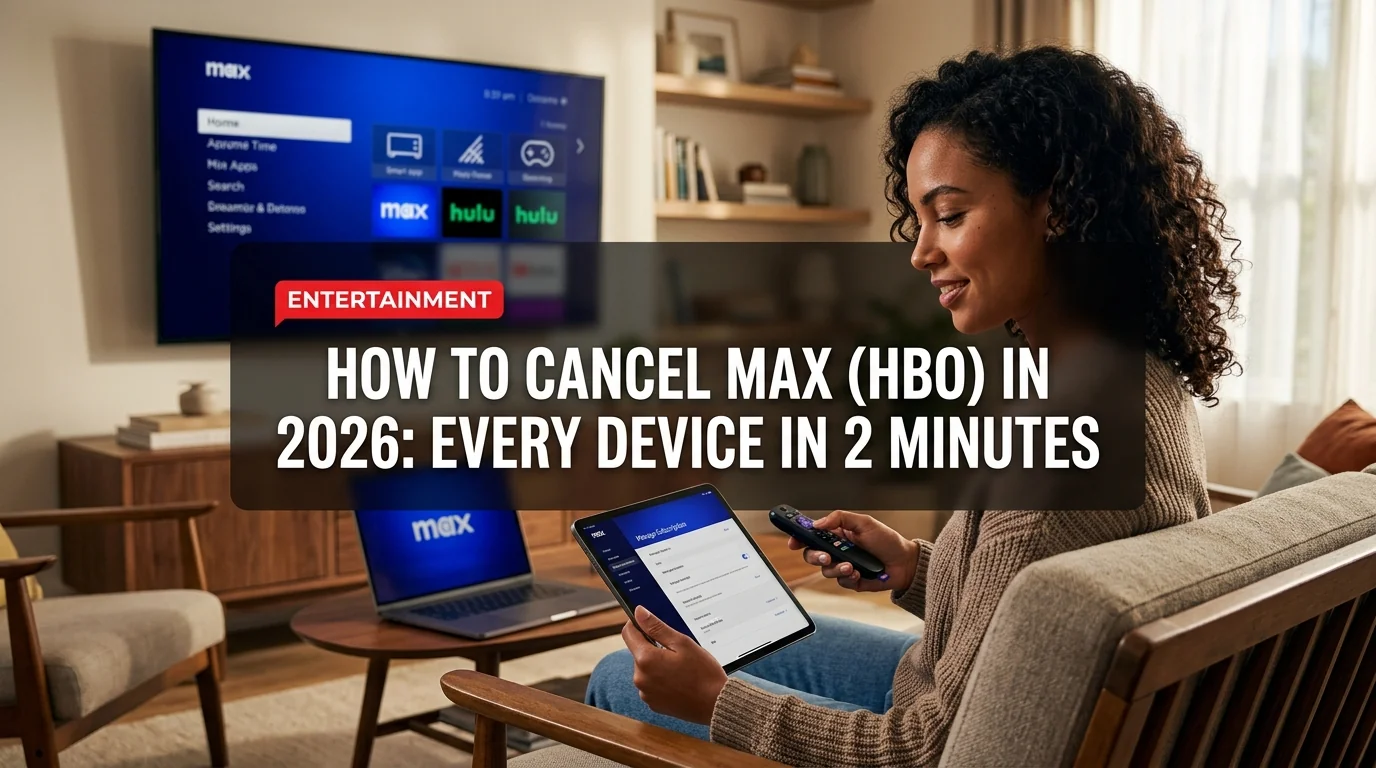
Canceling Max (formerly HBO Max) takes about two minutes once you know where to look — but the steps differ depending on where you signed up. Cancel in the wrong place and you'll keep getting charged.
This guide covers every cancellation method for 2026, including what happens to your watchlist, whether you can pause instead, and the billing trap most people fall into.
Important: Cancel Where You Signed Up
Before you follow any steps below, figure out how you originally subscribed to Max. This is the most common mistake — people try to cancel on the Max website but were actually billed through Apple, Amazon, or Roku.
Check your credit card or PayPal statement. The billing entity tells you where to cancel:
- Max.com or Warner Bros. Discovery → cancel on Max website
- Apple / ITUNES → cancel through iPhone/iPad Settings
- Google Play → cancel through Android or Google Play website
- Amazon → cancel through Amazon Prime Video Channels
- Roku → cancel through Roku's subscription page
- Your cable/TV provider → call them or cancel through their app
Method 1: Cancel Max on the Website (Most Common)
If you signed up directly on Max.com:
- Go to max.com and sign in
- Click your profile icon (top right)
- Select Account
- Scroll to Plan & Payment
- Click Cancel Plan
- Select a cancellation reason (required)
- Confirm cancellation
You'll receive a confirmation email. Your access continues until the end of your current billing period.
Method 2: Cancel Max on iPhone or iPad
If you subscribed via Apple:
- Open Settings on your iPhone or iPad
- Tap your name at the top (Apple ID)
- Tap Subscriptions
- Find Max in the list
- Tap it, then tap Cancel Subscription
- Confirm cancellation
Alternatively, open the App Store → tap your profile icon → tap Subscriptions.
Method 3: Cancel Max on Android
If you subscribed via Google Play:
- Open the Google Play Store app
- Tap your profile icon (top right)
- Go to Payments & subscriptions → Subscriptions
- Find Max and tap it
- Tap Cancel subscription
- Follow the on-screen prompts
You can also manage this at play.google.com on a desktop browser under your account subscriptions.
Method 4: Cancel Max on Roku
If you subscribed through your Roku device:
- Press the Home button on your Roku remote
- Scroll to Max in your app list
- Press the star (*) button to open options
- Select Manage subscription
- Choose Cancel subscription
- Confirm
Alternatively, visit my.roku.com → Sign in → Manage subscriptions → Cancel Max.
Method 5: Cancel Max on Amazon (Prime Video Channel)
If you subscribed as an Amazon Prime Video Channel:
- Go to amazon.com and sign in
- Navigate to Account & Lists → Memberships & Subscriptions
- Find Max under Prime Video Channels
- Click Cancel Channel
- Confirm cancellation
What Happens After You Cancel Max?
- You keep access until the end of your current billing period
- Your watchlist and viewing history are saved for 90 days
- Downloads are deleted immediately when your subscription ends
- You can resubscribe at any time and your history returns (within 90 days)
- Canceling on one device applies to all devices — no need to cancel everywhere
Your account stays in a "paused" state for 90 days before being fully deleted. If you resubscribe within that window, everything comes back — watchlist, continue watching, profiles.
Can You Pause Max Instead of Canceling?
Max does not currently offer a built-in pause feature the way some other services do. Your options are:
- Cancel and resubscribe later — your history is preserved for 90 days
- Downgrade — switch to the cheaper ad-supported plan ($9.99/month) rather than canceling entirely
- Time your cancellation — cancel right after your billing date, use the service for the full month, then resubscribe when you want it again
What About Max Through a Bundle?
If you have Max as part of a bundle — like the Disney Bundle (Disney+, Hulu, ESPN+, Max) or through a phone carrier or cable plan — you can't cancel Max individually. You'd need to:
- Cancel the entire bundle
- Or downgrade the bundle to a tier that excludes Max
- Or contact the bundle provider (carrier, cable company) to adjust your plan
Max vs. the Cancel Series: How It Compares
- Direct Web: Yes — straightforward menu
- No confirmation call required
- 2-minute process
- History preserved 90 days
- Apple billing: Must cancel in iPhone Settings
- Amazon billing: Must cancel in Amazon account
- Roku billing: Must cancel via Roku menu
- Wrong cancellation = continued charges
Cancellation Checklist
Before you cancel, run through this:
- Download anything you want to keep offline (before your period ends)
- Check if you have any live sports events upcoming that you'd miss
- Note your billing renewal date so you know how much access you have left
- Confirm you got the cancellation email from Max or your billing provider
- If you have a shared plan, notify other users on the account
The Bottom Line
Canceling Max is simple — the key is canceling through the right platform. If you subscribed on Max.com, cancel there. If you subscribed through Apple, Amazon, or Roku, cancel through them.
Once canceled, your access runs to the end of the billing period, your watchlist is saved for 90 days, and you can come back anytime without losing your viewing history.
If you're canceling to save money but still want HBO content occasionally, consider coming back for one month during a heavy release window (like a new House of the Dragon season) and canceling again afterward.