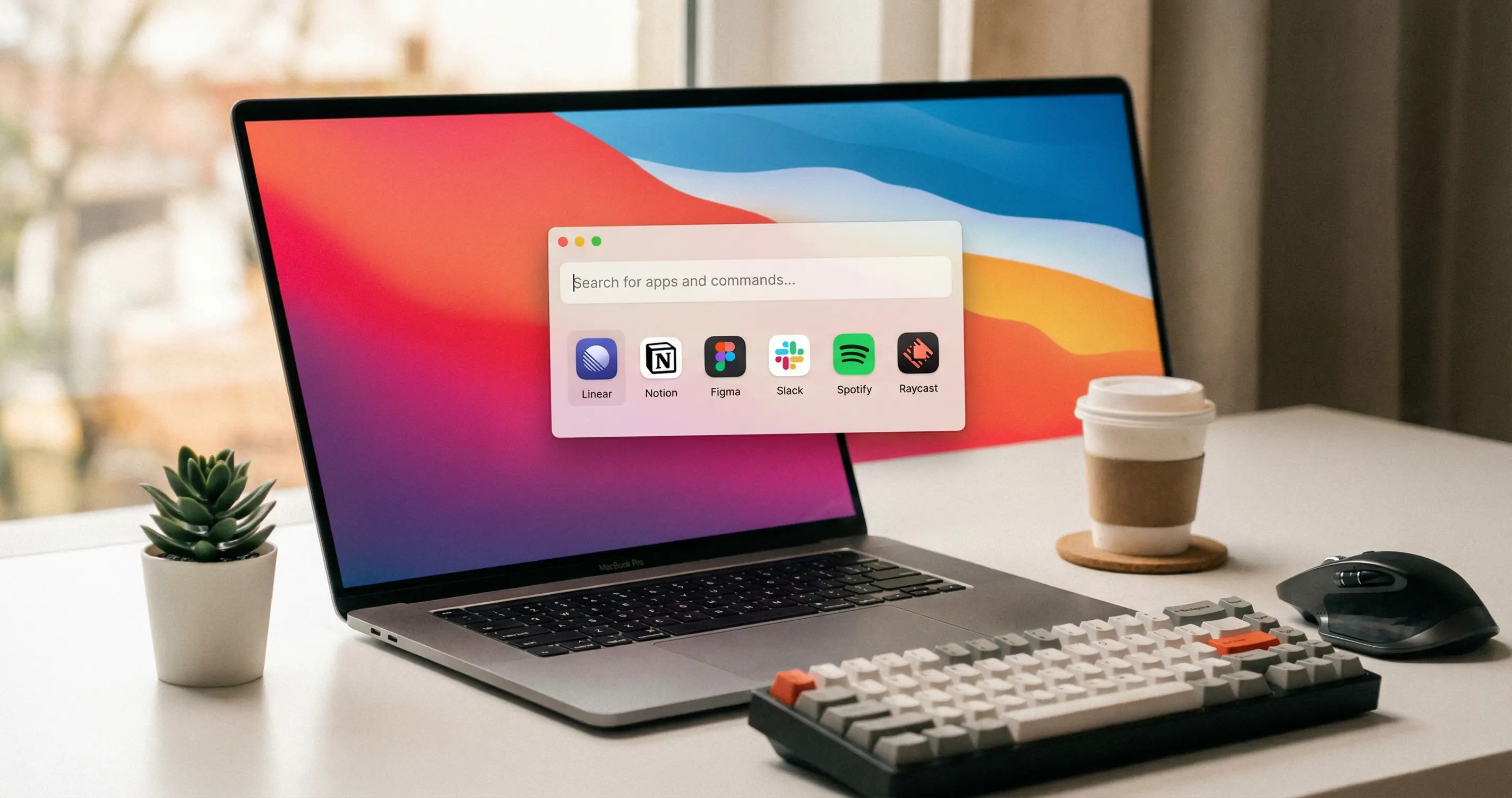
What Is Raycast?
Raycast is a productivity launcher that replaces or augments Spotlight on Mac and offers a similar experience on Windows. You open it with a keyboard shortcut, type a few characters, and launch apps, search files, run calculations, or query AI without leaving the keyboard. As of 2025, Raycast is available on Mac, Windows (beta), and iOS.
How to Install and Open Raycast
Download Raycast from raycast.com for your platform. On Mac, drag the app to Applications. On Windows, run the installer. After installation, open Raycast with the default hotkey: Option + Space (Mac) or Alt + Space (Windows). You can change this in Settings (Command + comma on Mac, Ctrl + comma on Windows). Turn on "Open at login" if you want Raycast to start with your system.
First Steps: Search and Launch
Type the name of any installed application and press Enter to launch it. You do not need to type the full name; partial matches work. For example, typing "chr" can show Chrome. Use the arrow keys to move between results and Enter to select. To search files on your machine, type "Search Files" or the shortcut "sf" (if available in your setup), then type your query. Results appear as you type. For quick math, type an expression like "42 * 17" directly in the Raycast bar; it acts as a calculator.
Clipboard History and Snippets
Raycast keeps a history of what you copy. Open the Clipboard History command (search for it or assign a hotkey in Settings) to see recent copies. Select an item to paste it. This works across text and, on supported systems, images. You can also create snippets for frequently used text and trigger them from Raycast to paste into any app.
Window and Appearance Settings
In Settings, you can switch between light and dark theme or set Raycast to follow your system appearance. Window Mode lets you choose Expanded (default) or Compact layout. Under Shortcuts, assign custom hotkeys to specific commands or apps so you can open them with one key combination. This reduces how often you need to type in the main bar.
Extensions and the Store
Raycast includes built-in extensions such as File Search and Window Management. Open the Extensions store from Raycast (search "Store" or "Extensions") to install community-built extensions for calendars, timers, development tools, and more. Each extension can have its own settings; manage them from the Extensions section in Settings. Script Commands let power users run custom scripts from the launcher.
Replacing Spotlight on Mac
If you prefer Raycast over Spotlight, you can set the same hotkey (Option + Space) in Raycast and disable or change Spotlight's shortcut in System Settings > Keyboard > Keyboard Shortcuts > Spotlight. That way, one shortcut gives you Raycast everywhere.
What to Do Next
After you are comfortable with launching and file search, explore one or two extensions that match your workflow (e.g., calendar, notes, or dev tools). Use the same hotkey every time you need to open an app or run a quick action so the habit sticks. Check the official Raycast Manual at manual.raycast.com for platform-specific details and new features.