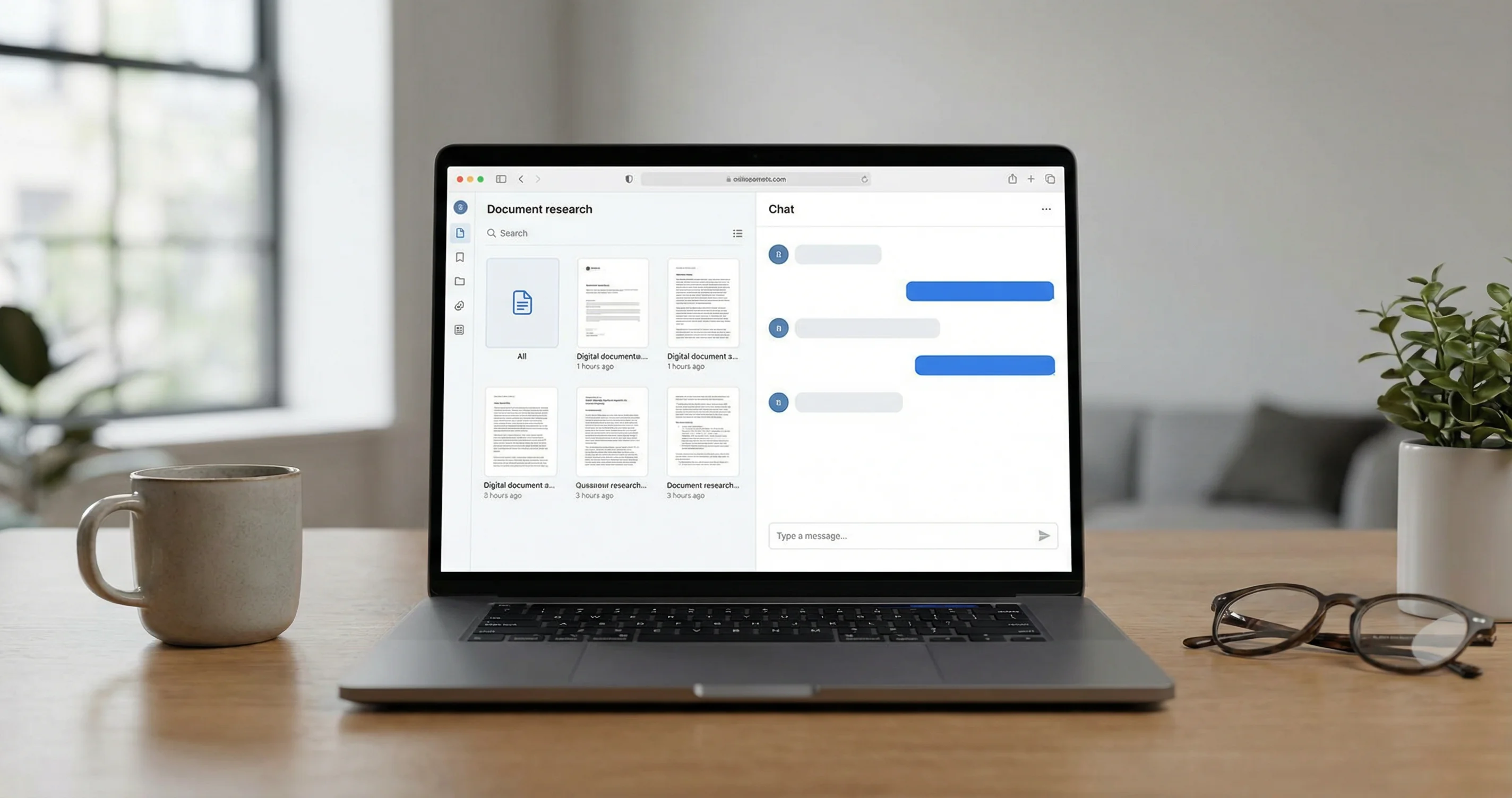
What Is NotebookLM?
NotebookLM is Google's AI research assistant. You add your own sources (documents, links, notes, or audio and video), and the tool answers questions and creates study materials using only those sources. It does not invent facts; it summarizes and connects what you provide. All answers can include inline citations so you can check the original material. You need a Google account (personal or work/school) and must be signed in.
Creating a Notebook and Adding Sources
Open NotebookLM at notebooklm.google.com and create a new notebook. Add sources via the source panel: upload PDFs, Google Docs, Google Slides, or .txt and Markdown files. You can add links to web pages and, for some plans, add audio (e.g., MP3) or video (e.g., YouTube); for audio and video, NotebookLM uses transcripts. You can add up to 50 sources per notebook. Give each source a clear name so you can recognize it in citations. You can turn sources on or off later to control which ones inform answers.
Chatting With Your Sources
Use the chat area to ask questions about your uploaded material. Phrase questions as you would when studying or preparing a report: "What are the main arguments in the second document?" or "Compare the conclusions of the two reports." NotebookLM answers using only your sources and shows citations; click a citation to see the exact quote and context. You can change the chat style (e.g., Default, Learning Guide, or Custom) and response length in settings to better match how you want to study or work.
Audio Overviews and Deep Dives
The Studio panel includes an Audio Overview tool. It generates an AI-narrated "deep dive" that walks through the main ideas in your sources. Use it to review material without rereading everything. The narration is based only on your sources, so it stays on topic. This is useful for long reports or multiple papers when you want a guided summary.
Study Guides, Briefings, and Mind Maps
From the same Studio area, you can create study guides, briefings, or mind maps from your sources. A study guide might turn your notes and PDFs into Q&A or key-point format. A briefing can distill several documents into a short overview. Mind maps help visualize how ideas connect. Generate these after you have added and organized your sources; you can regenerate if you add or remove sources.
Saving and Organizing Notes
You can save answers from the chat as notes and use those notes as new sources in the same or another notebook. That way you build a chain of summarized and cited material. Keep your source list tidy: remove outdated files and rename sources so you can quickly see what each one is when citations appear.
Getting the Most Out of NotebookLM
Upload the minimum set of sources needed for each project so answers stay focused. Ask one clear question at a time and use the citations to verify important claims. For research or writing, use the study guide and briefing outputs as drafts, but always double-check critical facts against the original sources. If an answer seems off, rephrase the question or check which sources are enabled.
What to Do Next
Create a notebook for your next report or exam, add 3–5 key documents, and run a few chat queries and one Audio Overview. See how citations and study guides fit into your workflow. Then try turning a source off and asking the same question again to see how answers change when the source set changes.