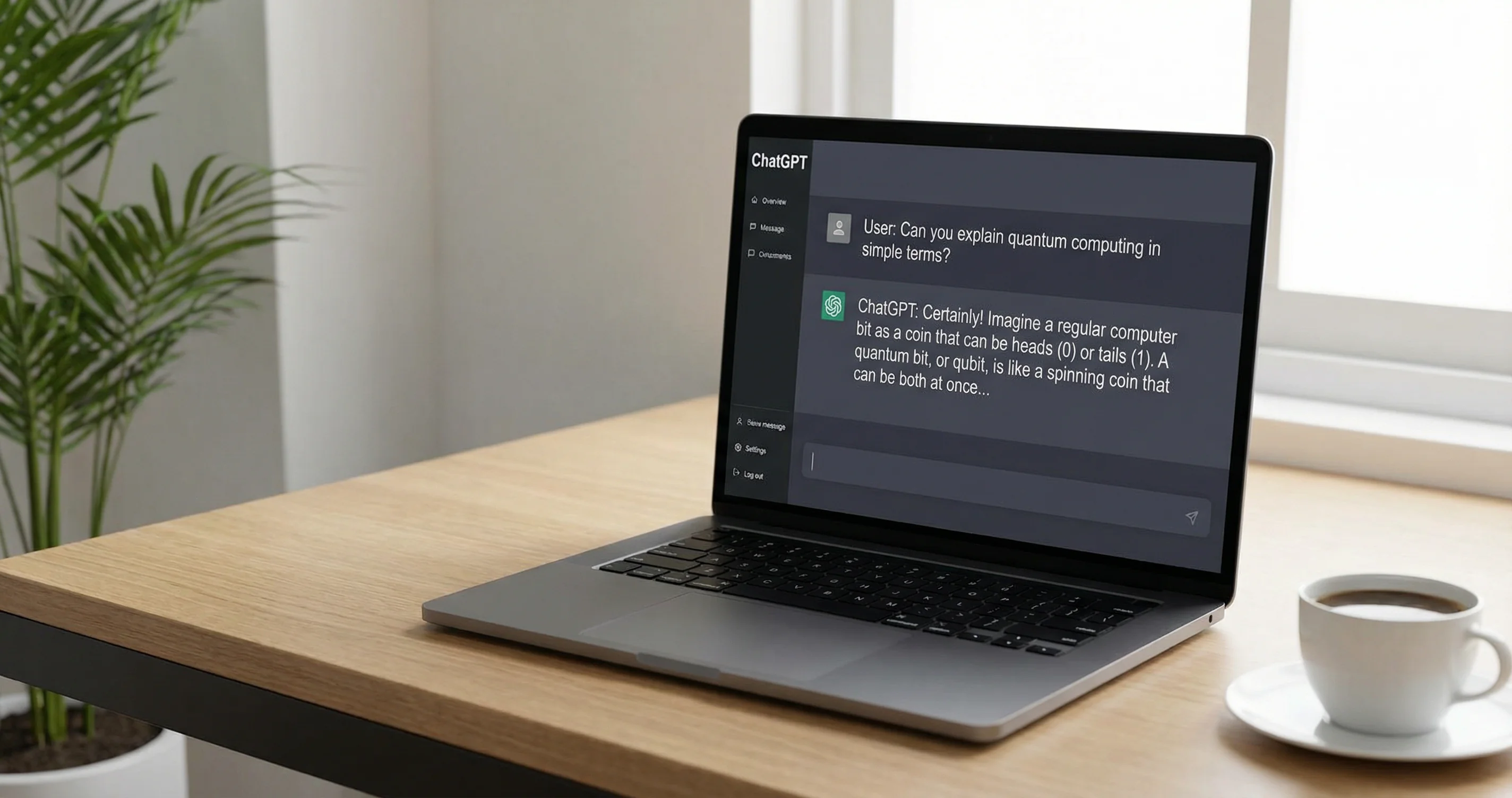
What ChatGPT Can Do for Your Workflow
ChatGPT can handle to-do lists, draft emails, summarize meetings and notes, create internal memos, format documents, and suggest calendar replies. Used with clear prompts and templates, it can save several hours per week. In 2025, ChatGPT supports images, PDFs, and voice (Whisper), and it can remember context across conversations. The Tasks feature runs automated prompts on a schedule and delivers results by email or notification.
Start With Low-Risk Tasks
Begin with tasks where mistakes are easy to fix: email drafts, short summaries, brainstorming, and study materials. Give explicit instructions: specify tone (professional or casual), length (one paragraph or three bullets), and format (bullet list or prose). The more precise the prompt, the more usable the output. Avoid asking for everything in one message; break big requests into smaller steps.
Writing Emails and Memos
Paste the gist of what you need to say and ask ChatGPT to draft the email. Include who the recipient is and what you want (e.g., "Decline the meeting but suggest a 15-minute call next week"). For memos, provide the main points and ask for a structured draft with a one-line summary at the top. Revise the output before sending; do not use it verbatim for sensitive or legal matters.
Summarizing Meetings and Notes
Paste a meeting transcript or your notes and ask for a summary with action items. For example: "Summarize this in three paragraphs and list action items with owners." You can then ask for follow-up emails or Slack messages based on those items. For long documents, upload the file (if your plan supports it) and ask for a summary or a list of key decisions and next steps.
Managing Tasks and Projects
Use ChatGPT to turn a brain dump into a task list: paste your notes and ask it to extract action items, optionally with suggested priorities or deadlines. You can also ask for a simple project plan with phases and deliverables. Copy the result into your task manager (e.g., Todoist, Motion, or Notion). Do not rely on ChatGPT as the single source of truth for due dates; always confirm in your own system.
Using the Tasks Feature (2025)
Tasks let ChatGPT run prompts on a schedule and send you the result. Use it for daily briefings (e.g., "Summarize my calendar and top priorities"), prep checklists before meetings, or periodic data summaries. Create a Task from the ChatGPT interface, set the prompt and schedule, and choose how you want the result (email or in-app). Tasks use your existing ChatGPT context, so they work best when you have already set up relevant information in your account.
Prompt Tips That Save Time
Use a simple structure: context first ("I am a project manager writing to a client"), then the task ("Draft a short status update"), then constraints ("Three bullets, under 100 words"). For complex reasoning, ask ChatGPT to think step by step before giving the final answer. For edits, paste the text and say exactly what to change (e.g., "Make the second paragraph more formal" or "Shorten to 50 words"). Save prompts you reuse in a doc or template so you can paste and adjust them quickly.
What to Do Next
Pick one or two use cases (e.g., email drafts and meeting summaries) and use them for a week. Refine your prompts based on what you get. Then try Tasks for one recurring need (e.g., daily briefing). Keep sensitive or confidential information out of prompts unless your plan and employer policy allow it.